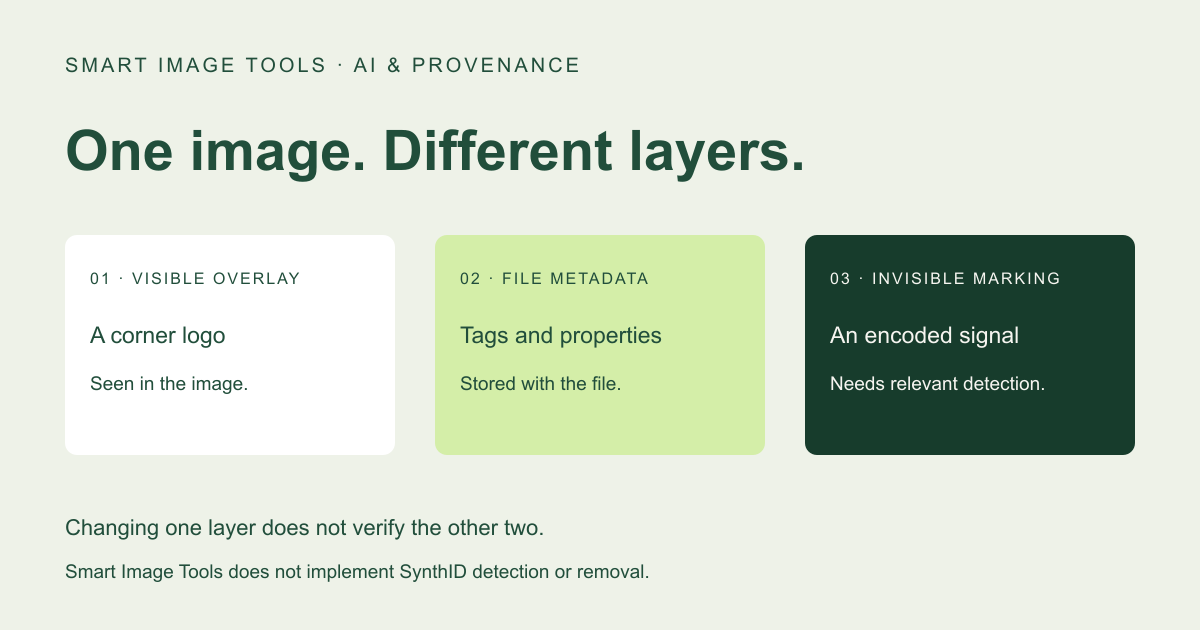
The word watermark can refer to a visible overlay or an invisible signal. Confusing those meanings leads to incorrect expectations about image editors and provenance tools.
- The tested example
- Step 1: Read what the visible-logo tool actually claims
- Step 2: Run the synthetic visible-logo demonstration
- Step 3: Inspect the pixels that visibly changed
- Step 4: Keep the export’s identity and limitations documented
- Check the result
- Troubleshooting
- Background and practical details
- Example sources
TESTED WORKED EXAMPLE
What this session produced
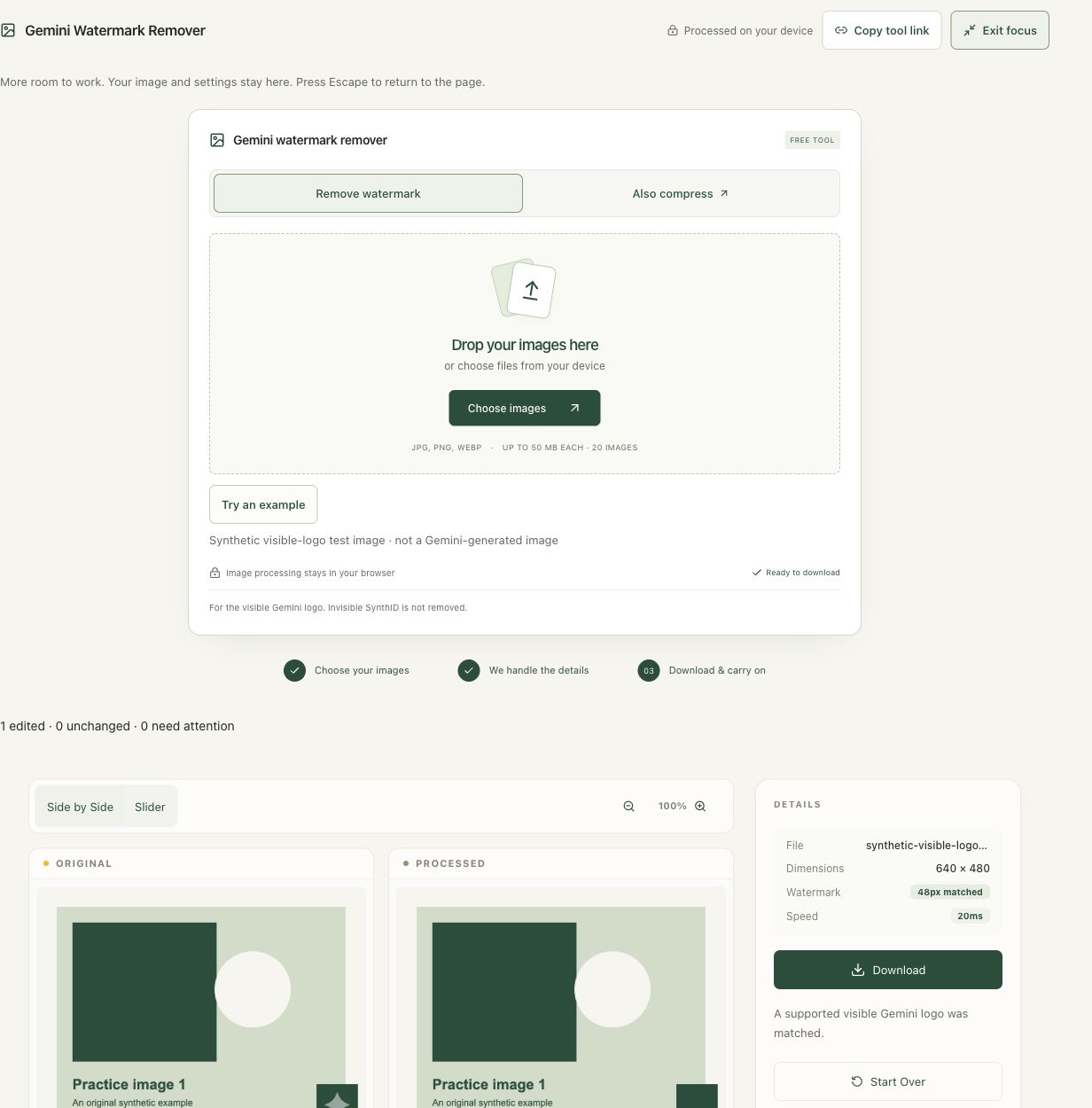
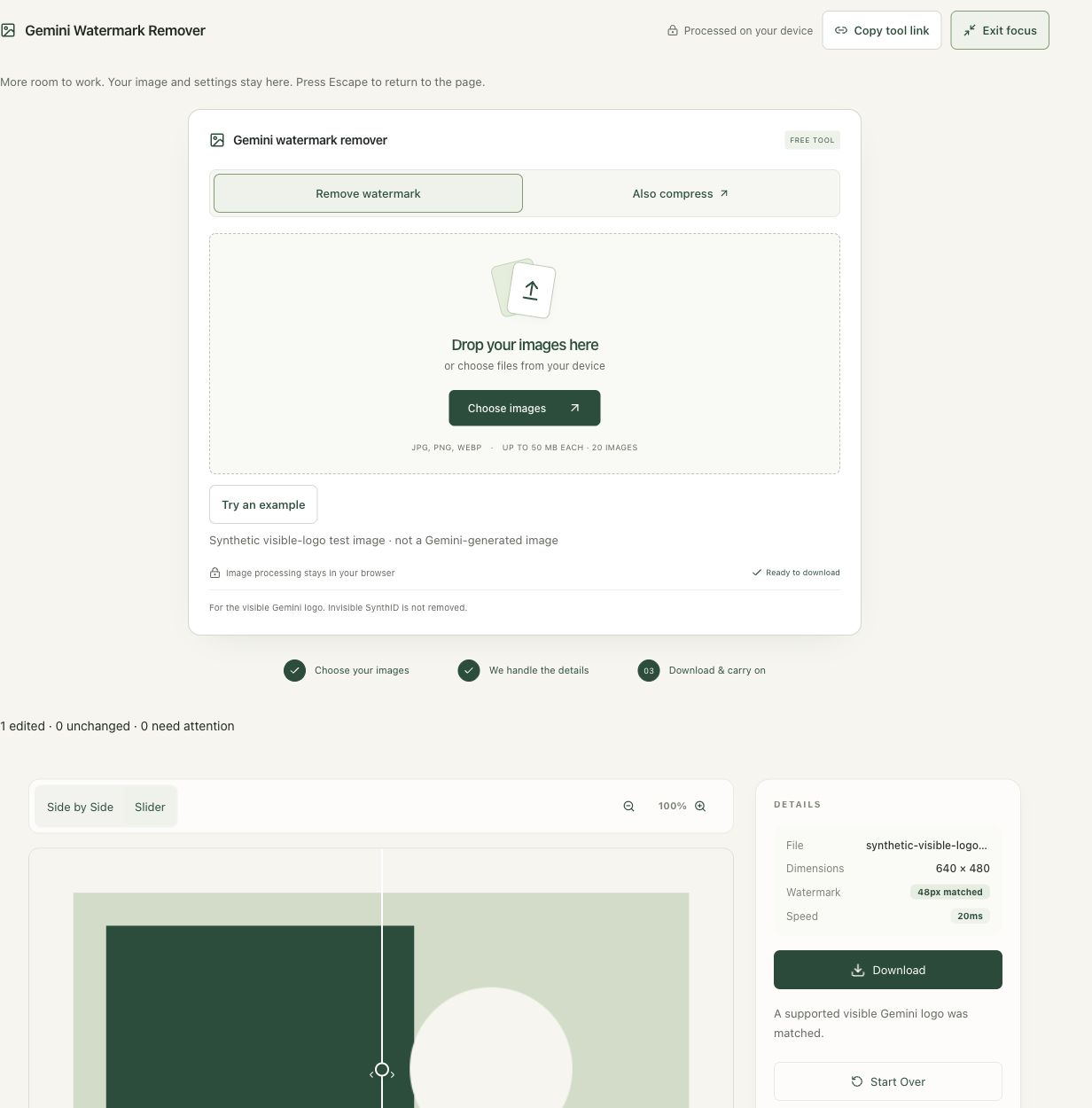
The original 640 × 480 synthetic test image contained a known visible corner logo. The tool matched the supported 48-pixel template and reported one edited file. This example is not Gemini-generated and does not test or remove SynthID.
The screenshots were captured from our working tools on October 6, 2026. Focus workspace is used to give the controls and preview more room. Captures show either the full workspace or the relevant panel; they are not recreated interface illustrations. Sizes and outcomes describe this sample, not a promised result for every image.
A hands-on comparison: visible edits versus invisible provenance
Read the settings and the result together. Keep an untouched source when a file is edited, and check the finished output before using it in another application. Each numbered step below includes a real screenshot of the corresponding workspace state. Use the full-size link when a control label is too small on your screen.
Step 1: Read what the visible-logo tool actually claims
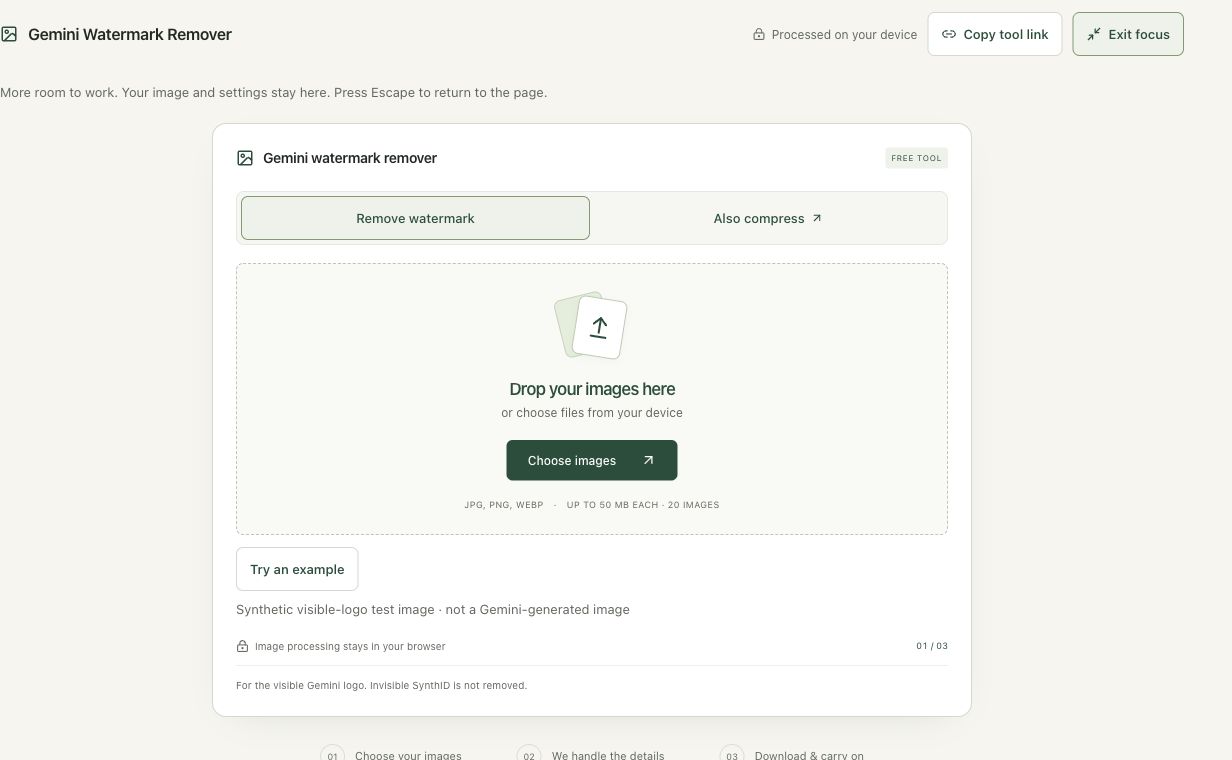
Open Gemini Watermark Remover and read its scope notice. It targets a supported visible corner logo and explicitly excludes invisible SynthID removal. That distinction comes before any processing result. A tool that edits a corner is not measuring a signal distributed through image pixels. Keep provenance questions separate from the appearance of the delivered image.
Step 2: Run the synthetic visible-logo demonstration
Choose Try an example. The source is labeled as a synthetic test image, not a Gemini-generated image. It contains a supported visible template and produces a matched result. This controlled demonstration verifies that a visible edit occurred. It cannot establish whether a real AI-generated source has SynthID, because the practice fixture was not created to contain or measure that signal.
Step 3: Inspect the pixels that visibly changed
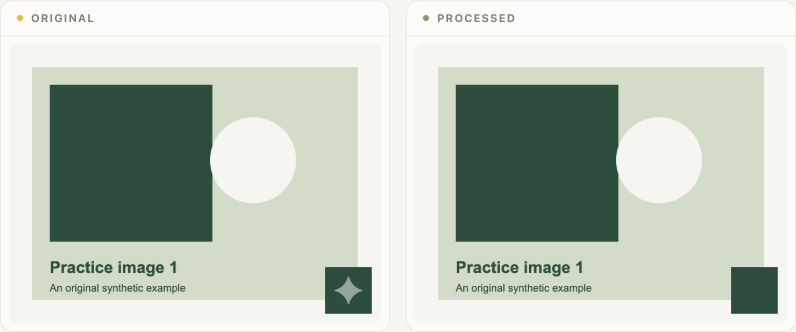
Compare the original and processed test graphic side by side. The visible corner mark can change without telling you anything about invisible provenance. A clean-looking corner is an observation about appearance. It is not a negative SynthID detection result. If an identification claim matters, use the relevant official verification method and read its stated scope rather than inferring it from this comparison.
Step 4: Keep the export’s identity and limitations documented
Review the result details and preserve the original when downloading the edited demonstration. Describe it as a visible-logo edit, not a provenance-free image. The tool’s status concerns its supported visible template. A missing visible logo or metadata field does not prove that an image is human-made, that all AI identifiers are absent, or that publication rights have been granted.
Check the result before using it
Inspect the edited corner for texture changes and leave the source identity documented. A supported visible-logo match is not a guarantee of artifact-free reconstruction and does not prove that an image was created by a particular AI service.
If the result is not what you expected
Unsupported, moved, resized or heavily altered visible logos can remain unchanged or require attention. Do not treat a no-match result as proof that an image has no invisible watermark. This tool does not remove invisible SynthID or authenticate provenance.
Background and practical details
Three different layers
A visible logo is part of what you can see in an image. File metadata is information stored alongside the encoded pixels, such as camera settings or an orientation tag. Invisible watermarking encodes a signal that is not intended to be apparent to a viewer. Changing one layer does not establish what is present in the other two.
The visible Gemini logo
Smart Image Tools’s dedicated remover checks a supported visible corner-logo pattern and uses reverse alpha blending for a confident match. A modified, cropped or resized pattern may not match. The result needs a visual check; an uncertain image stays unchanged.
This method operates on a particular visible overlay. It is not an authenticity detector and does not determine whether an image was generated by a particular model. A similar-looking corner, or an absent corner logo, is not conclusive evidence of an image’s origin.
What Google says about SynthID
According to Google DeepMind’s SynthID documentation, the technology embeds imperceptible digital watermarking in generated content. Its image and video marking is designed to tolerate modifications such as cropping, filters and lossy compression. Detection uses SynthID technology rather than a visual inspection of a corner logo.
Smart Image Tools does not implement SynthID detection or removal. A successful visible-logo edit makes no claim about an invisible mark. Compression, format conversion and metadata removal also do not supply a reliable SynthID status.
Metadata is a separate question
A file can carry location, camera or descriptive information in metadata. Our Remove EXIF tool re-encodes supported images to remove embedded metadata. That workflow is useful before sharing a photo, but it does not cover visible private text and does not establish the absence of invisible watermarking.
For a screenshot containing private information, use a solid redaction and inspect its output. Blur or pixelation can leave information recognizable. Privacy depends on the actual result, not simply the name of the tool used.
A practical example
Suppose you have permission to edit an AI-generated illustration with a supported visible logo. The remover reports a confident match and exports a PNG. You compare the edited corner and find it suitable for your layout. That completes a visible-image editing task. It does not demonstrate that the file has no invisible marking, give you new reuse rights or turn the illustration into a photograph.
If the receiving platform requires disclosure that an image was generated or altered using AI, follow that requirement even when the visible overlay has been edited. Keep the original and the information you need to explain your workflow.
How to interpret claims about detection
Check the current primary documentation of the service you intend to use. Availability, supported media and verification methods can change. An unexplained confidence score or a generic AI-detector label should not be treated as proof that a particular watermark was checked.
This article does not provide an image-detection API or a Python command for SynthID. For current information, begin with the official SynthID page. For our actual visible-logo workflow, follow the step-by-step guide.
Questions and corrections
Smart Image Tools is independent of Google and Gemini. Product references identify the technology being discussed. If you find a misleading statement or an outdated source, contact the website team with the relevant URL. Read our editorial and tool documentation policy for how we distinguish a tool result from a broader claim.
Example sources and screenshot notes
This is the tool’s clearly labeled synthetic visible-logo test image, not a Gemini-generated image. It demonstrates a visible edit and does not test or remove SynthID.
The controls shown are from the version tested for this guide. A later interface update or a different source can change a result. Compare the displayed format, dimensions and status with the instructions, and report a mismatch with the article URL and the setting involved. Our editorial policy explains how examples and corrections are reviewed.
Find the right tool for your image.
Explore the free workspaces, read their methods and inspect your result before sharing.
Explore image tools