A visible corner logo and invisible provenance marking are different things. This guide describes the visible-logo edit implemented by Smart Image Tools, including the checks you should make before using a result.
- The tested example
- Step 1: Open the visible-logo workspace and read its scope
- Step 2: Run the clearly labeled synthetic test image
- Step 3: Compare the original and edited corner side by side
- Step 4: Review the slider and download the permitted result
- Check the result
- Troubleshooting
- Background and practical details
- Example sources
TESTED WORKED EXAMPLE
What this session produced
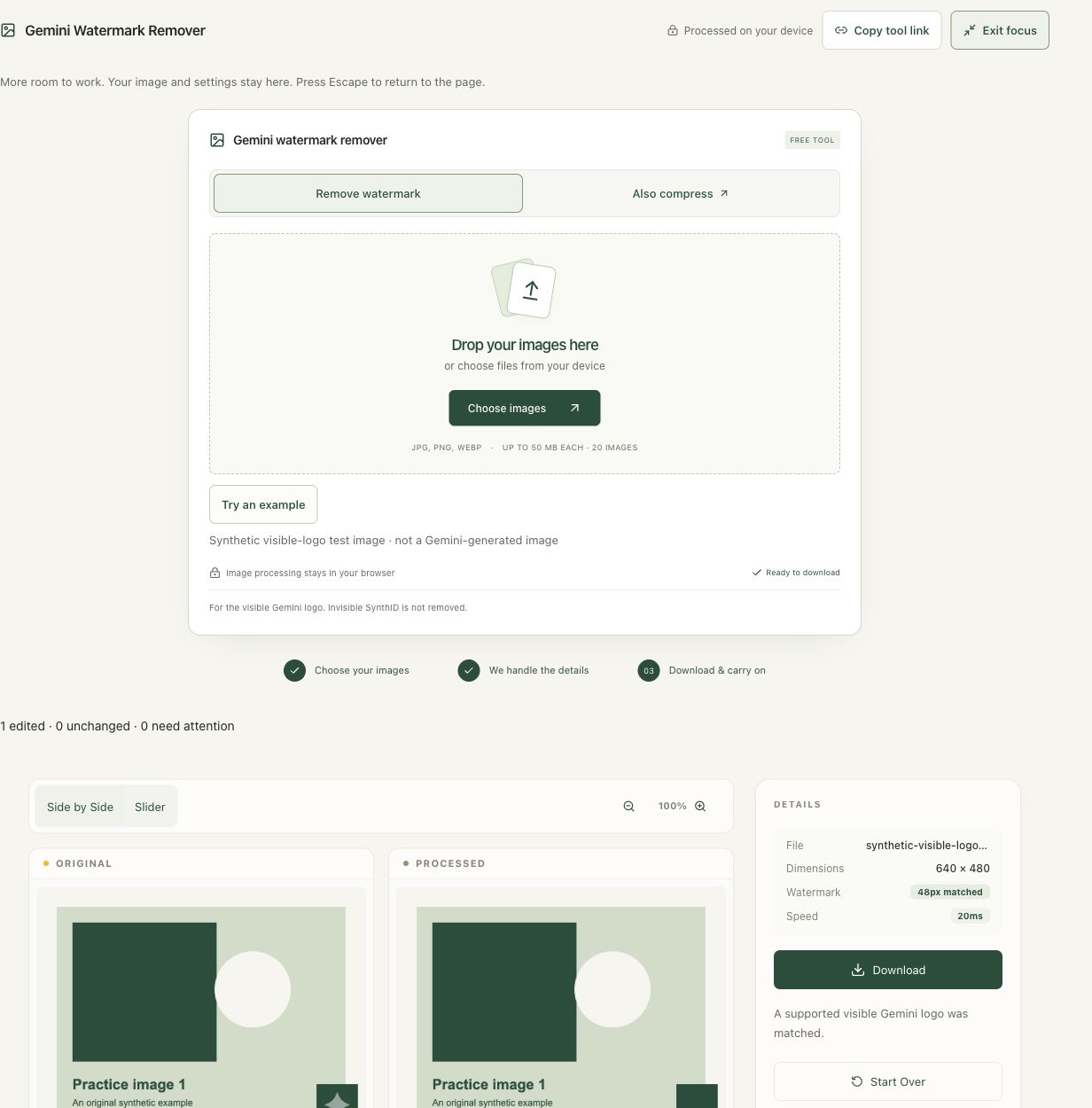
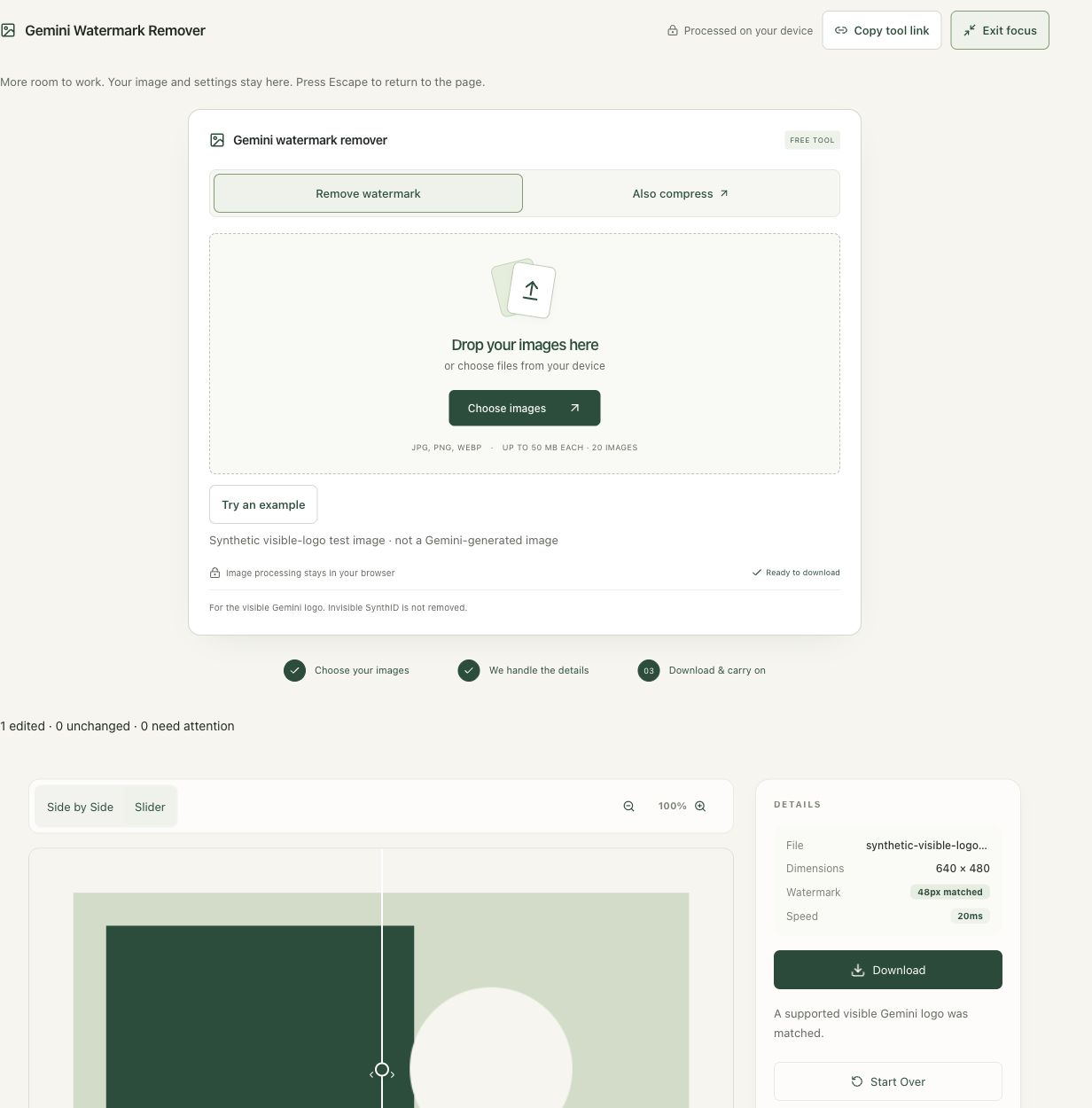
The original 640 × 480 synthetic test image contained a known visible corner logo. The tool matched the supported 48-pixel template and reported one edited file. This example is not Gemini-generated and does not test or remove SynthID.
The screenshots were captured from our working tools on October 6, 2026. Focus workspace is used to give the controls and preview more room. Captures show either the full workspace or the relevant panel; they are not recreated interface illustrations. Sizes and outcomes describe this sample, not a promised result for every image.
Follow the worked example, step by step
Read the settings and the result together. Keep an untouched source when a file is edited, and check the finished output before using it in another application. Each numbered step below includes a real screenshot of the corresponding workspace state. Use the full-size link when a control label is too small on your screen.
Step 1: Open the visible-logo workspace and read its scope
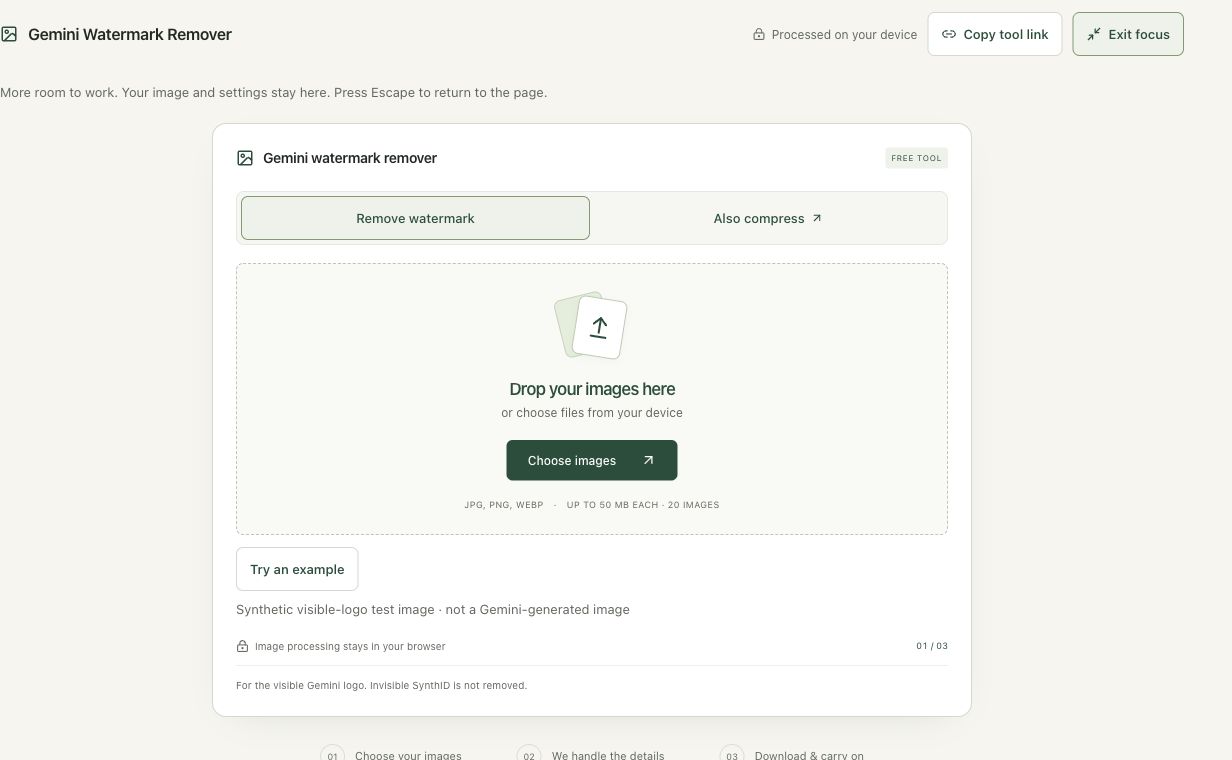
Open Gemini Watermark Remover. Read the notice that it targets the visible Gemini corner logo and does not remove invisible SynthID. Use only images you are permitted to edit, and retain the unedited source when disclosure or provenance matters. The workspace’s visible result should never be presented as proof that all AI identifiers are absent.
Step 2: Run the clearly labeled synthetic test image
Choose Try an example. The source is explicitly labeled Synthetic visible-logo test image, not a Gemini-generated image. It contains a known supported template so the local processing behavior can be demonstrated honestly. The completed session reports one edited file and a 48-pixel match. A real image can have a different outcome depending on its mark and processing history.
Step 3: Compare the original and edited corner side by side
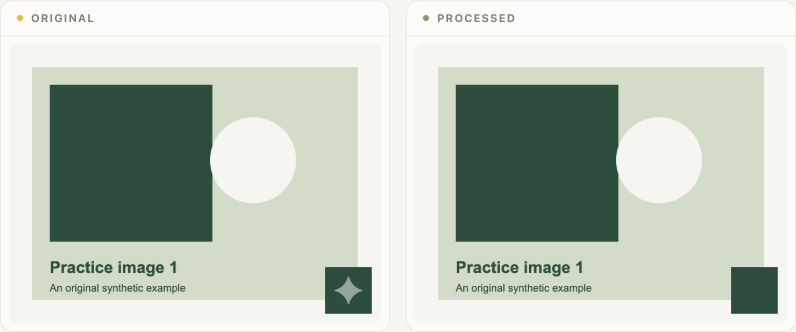
Use Side by Side to compare the test graphic before and after the edit. Inspect the bottom-right region closely and look for remaining logo edges, altered colors or unnatural texture. A whole-image fitted view can hide small corner artifacts. The comparison demonstrates a visible edit; it contains no measurement of invisible provenance signals.
Step 4: Review the slider and download the permitted result
Switch to Slider if it makes the corner comparison easier, then choose Download. Read the match status and keep the original available. If a real file is unchanged or needs attention, review that result individually. Do not keep processing an unsupported file while assuming that repeated attempts will remove a different class of watermark.
Check the result before using it
Inspect the edited corner for texture changes and leave the source identity documented. A supported visible-logo match is not a guarantee of artifact-free reconstruction and does not prove that an image was created by a particular AI service.
If the result is not what you expected
Unsupported, moved, resized or heavily altered visible logos can remain unchanged or require attention. Do not treat a no-match result as proof that an image has no invisible watermark. This tool does not remove invisible SynthID or authenticate provenance.
Background and practical details
Start with an image you own or have permission to edit. Keep its original file so you can compare the result and return to it later. Editing a visible logo does not grant rights to an image or change its origin.
Choose the dedicated tool
Open the Gemini Watermark Remover. It accepts JPG, PNG and WebP, with a maximum of 50 MB per file, 20 files per batch and 150 MB combined. These bounds protect browser memory; they are not paid restrictions. No account is required.
What the engine changes
The tool checks a known corner-logo pattern. When the match is confident, it uses reverse alpha blending to estimate pixel values beneath that overlay. The calculation uses the known logo transparency rather than generating an entirely new region. The edited pixels can still differ from the original pixels before the overlay was added.
In the controlled fixture above, a known overlay is applied to a flat gray background and then reversed. Real photos can contain compression artifacts, clipped highlights or modified logo pixels. Those conditions make the calculation less reliable. Always inspect your own result.
Why an image can stay unchanged
The logo may have moved, been resized, been partly cropped or changed through image editing. The detector can also be uncertain about a pattern in the background. In those cases, the workflow keeps the original file bytes, format and metadata instead of guessing at an edit. Animated PNG and WebP files also remain unchanged.
An unchanged result is useful information. Try the compatible original if you have it. Do not keep recompressing or enlarging a copy in the hope that doing so proves a logo match. This tool is not a general-purpose object eraser.
Removal and compression are separate
The detected edit is initially encoded as PNG. Also compress preserves the pixels of that edited canvas. You can choose PNG only, or allow the smallest lossless PNG/WebP result. The selected file may still be larger than the uploaded JPG because editing and encoding are different operations.
Lossless compression does not mean that logo removal made no pixel changes. It means the compression stage did not introduce further pixel changes. If an upload form has a strict file-size requirement, use Compress to Size afterward and inspect its lossy output.
What this does not tell you
Google DeepMind describes SynthID as invisible watermarking for AI-generated content. Smart Image Tools does not detect or remove that marking. Removing a visible corner logo does not establish that an image lacks SynthID or that it was created without AI.
Use the image according to the permissions and destination rules that apply to it. Where AI-origin disclosure is required, preserve that disclosure in the appropriate form. Read our visible-logo versus SynthID explanation for the practical distinction.
Before you share
- Compare the edited corner with the original.
- Confirm the output format and pixel dimensions.
- Check the downloaded file, including transparency if relevant.
- Keep the source and any required attribution or origin information.
Found an incorrect instruction? Send us the page URL and a description. Our editorial policy explains how we handle corrections.
Example sources and screenshot notes
This is the tool’s clearly labeled synthetic visible-logo test image, not a Gemini-generated image. It demonstrates a visible edit and does not test or remove SynthID.
The controls shown are from the version tested for this guide. A later interface update or a different source can change a result. Compare the displayed format, dimensions and status with the instructions, and report a mismatch with the article URL and the setting involved. Our editorial policy explains how examples and corrections are reviewed.
Find the right tool for your image.
Explore the free workspaces, read their methods and inspect your result before sharing.
Explore image tools