A photograph can reveal information through its visible content and through data stored alongside its pixels. Review both. Removing metadata is one practical step, not a promise of anonymity.
- The tested example
- Step 1: Open the metadata-cleaning workspace
- Step 2: Try the default lossless PNG output
- Step 3: Choose original-format output if that tradeoff suits the task
- Step 4: Inspect the cleaned copy and its actual size
- Check the result
- Troubleshooting
- Background and practical details
- Example sources
TESTED WORKED EXAMPLE
What this session produced
The original Pexels photograph was 6,048 × 4,024 and about 1.7 MB. The default PNG output was about 11.6 MB. Switching to original-format JPG produced about 2.5 MB at unchanged dimensions; that path re-encodes and can change pixels.
The screenshots were captured from our working tools on October 6, 2026. Focus workspace is used to give the controls and preview more room. Captures show either the full workspace or the relevant panel; they are not recreated interface illustrations. Sizes and outcomes describe this sample, not a promised result for every image.
Follow the worked example, step by step
Read the settings and the result together. Keep an untouched source when a file is edited, and check the finished output before using it in another application. Each numbered step below includes a real screenshot of the corresponding workspace state. Use the full-size link when a control label is too small on your screen.
Step 1: Open the metadata-cleaning workspace
Open Remove EXIF and read the distinction between hidden metadata and visible image content. Keep the original photograph privately if you need its camera information later. This example uses the original downloaded Pexels file rather than the resized tutorial copy. That makes the large decoded dimensions and the export-size tradeoff visible in the results.
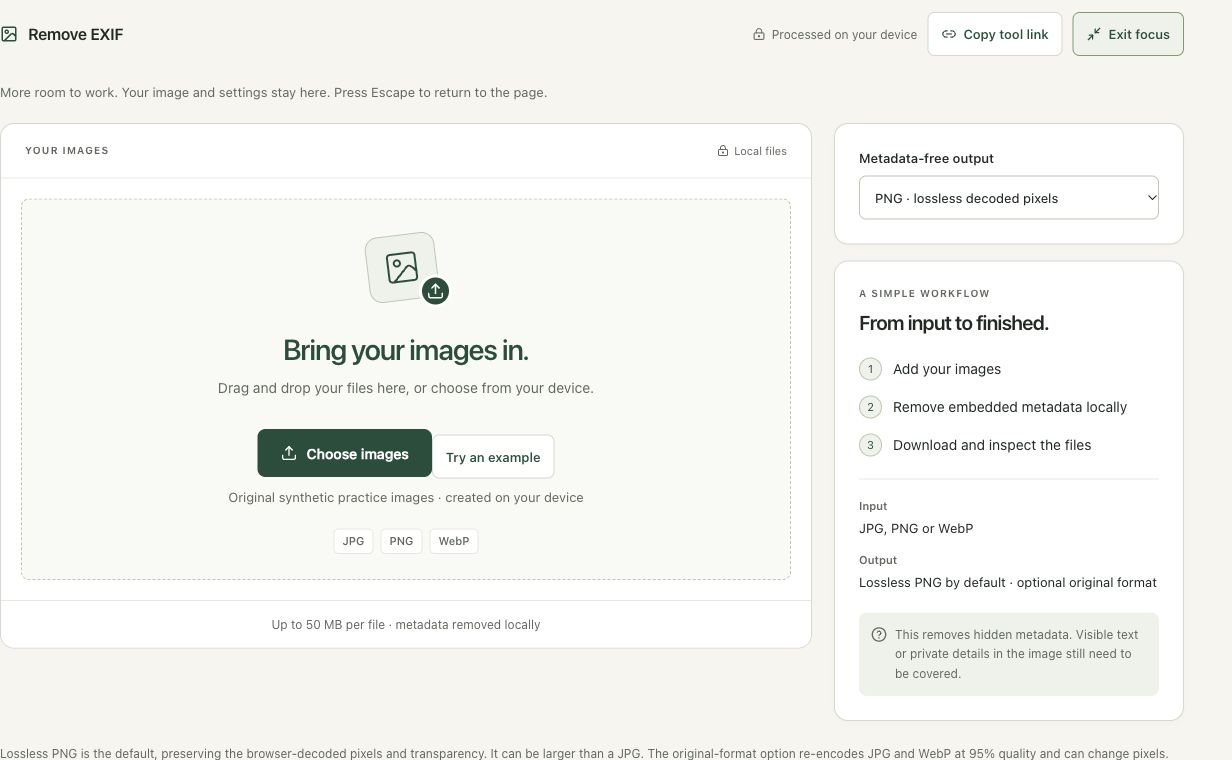
Step 2: Try the default lossless PNG output
Choose the original lake photograph and allow processing to finish. The default is PNG with preserved browser-decoded pixels. In this session the 6,048 × 4,024 photo became about 11.6 MB. That increase is plausible for a photographic PNG. Do not confuse lossless decoded-pixel preservation with keeping the original JPG’s compressed byte stream or all of its metadata.
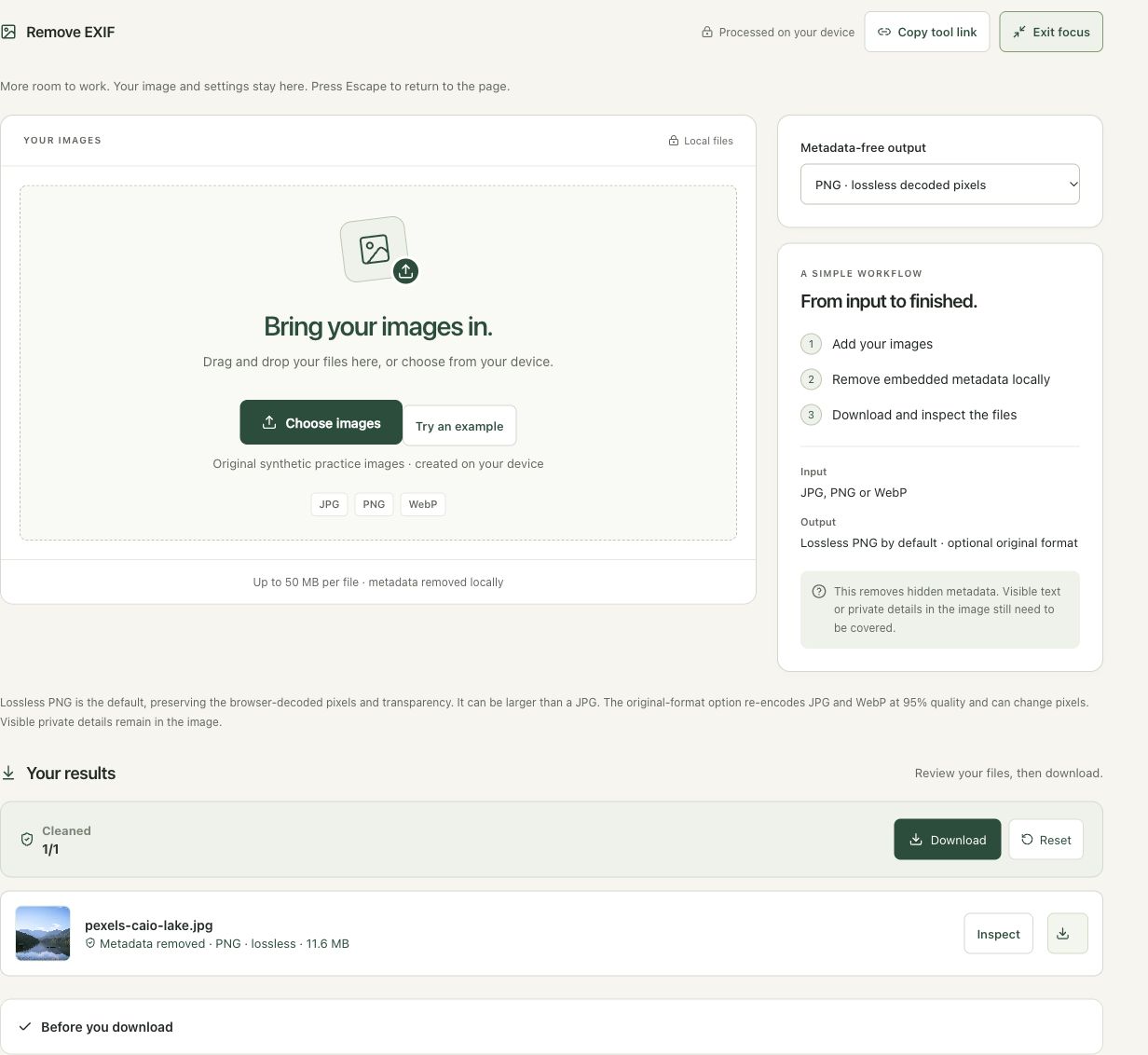
Step 3: Choose original-format output if that tradeoff suits the task
Select Original format and read the warning that JPG and WebP can lose quality. Choose Apply output setting to generate the new version; the previously displayed output is not automatically evidence of the changed setting. This session uses the tool’s 95% JPG quality. Decide whether a re-encoded JPG is acceptable for the intended sharing copy.
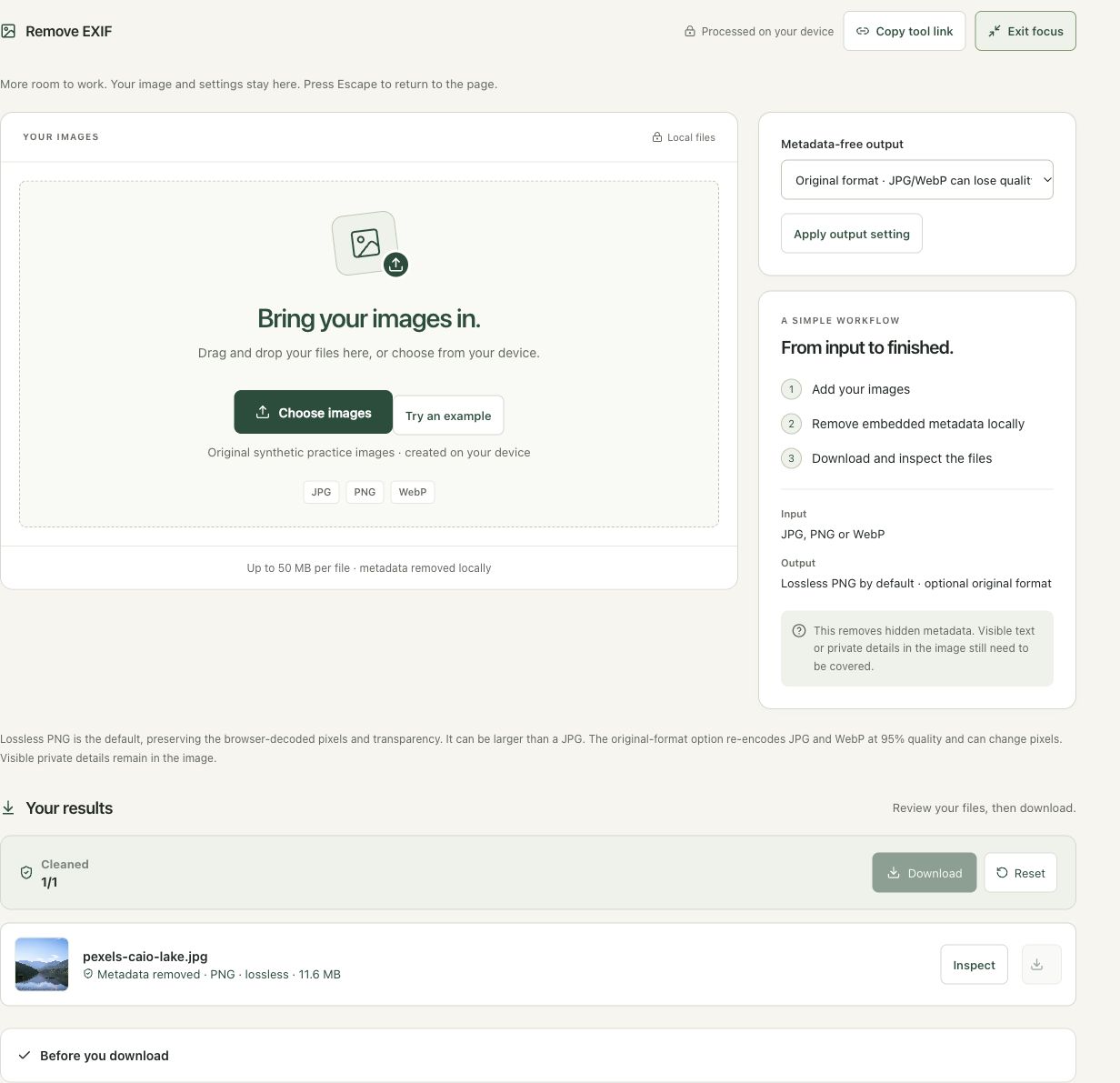
Step 4: Inspect the cleaned copy and its actual size
Wait for the updated result and use Inspect. The completed JPG is about 2.5 MB, still 6,048 × 4,024. Review the picture before downloading, then verify any metadata requirement against that downloaded file. The screenshot shows the result row and its re-encoding label. A clean hidden-data export does not cover readable private text in the picture.

Check the result before using it
Inspect the actual delivery file with a metadata-aware viewer when particular tags matter. The tool creates a new image rather than preserving all camera data. Visible names, addresses or documents in the photograph remain visible and require separate redaction.
If the result is not what you expected
A larger file is not evidence that cleanup failed. PNG preserves browser-decoded pixels but can be expensive for camera photos. Original-format JPG/WebP uses a 95% quality re-encode, which can be larger than the source and is not an exact-pixel preservation mode.
Background and practical details
Separate embedded data from visible content
Depending on the device and application, a photo may contain capture time, camera settings, location or descriptive fields. A particular file might contain none of them. Do not assume every phone picture contains GPS, or that the absence of one familiar field means the file contains no metadata at all.
Visible information is a different problem. Street signs, house numbers, badges, reflections and document text remain visible after metadata removal. The subject and surroundings can reveal a location without any GPS tag. Review the picture itself before choosing a sharing copy.
The tool redraws the decoded image and exports a new file instead of copying the source metadata blocks. This removes the source’s embedded EXIF and related data in the re-encoded output. A browser encoder can still create basic file information, such as dimensions and resolution. Metadata-free should not be interpreted as a file without any headers.
Choose between PNG and the source format
PNG may be significantly larger than a photo’s original JPG. It preserves the decoded pixels, not the source file’s encoding or camera RAW information. Original format re-encodes JPG and WebP at the tool’s 95% quality setting, which can change pixels. It does not preserve the original file bytes. Changing the output setting after processing requires applying it again before download.
Inspect orientation and colors. An orientation tag can influence how a viewer presents the source; the browser’s decoded pixels may already reflect that orientation. A color-managed source can also look different in another application. If a camera archive or professional color workflow matters, retain the original and send a separate suitable copy.
Check the exported file independently
Look at the downloaded copy’s properties in a viewer that exposes metadata, or use a trusted metadata inspection tool. Check the fields relevant to your concern, including location and descriptive data. Review the file’s name as well: a name can include a person, project or address even when its embedded tags have been removed.
Apple documents location-data management in Photos. Platform sharing options can offer another way to omit location. Their behavior depends on the device and sharing method, so inspect the actual copy delivered to the recipient rather than relying only on a toggle.
Review visible private details
Crop away unnecessary surroundings where that preserves the purpose of the image. If text must be hidden, use a solid redaction in Blur & Redact Image and inspect the final file. A blur can leave shapes or characters recognizable. Check the actual exported image, including any thumbnails or other copies you intend to send.
Re-encoding an animated input creates a still image. Metadata removal also does not establish whether an image contains invisible AI marking. Read our explanation of visible logos, metadata and SynthID for that distinction.
Local processing and its boundaries
Smart Image Tools performs this image operation in your browser. The website can record bounded numeric activity measurements, as explained in its privacy policy; local image processing does not mean that visiting a website produces no network traffic. Close the workspace when finished and keep control of both your source and sharing copy.
Found a different result or an outdated instruction? Send the page URL and a description. Read our editorial policy for how we document methods and limitations.
Example sources and screenshot notes
The example uses the original 6,048 × 4,024 photograph: Lake surrounded by green mountains by Caio.
These photographs are used under the Pexels license. They are licensed images, not claimed as public domain. The photographer links identify the original sources; resizing and example processing were performed for this tutorial.
The controls shown are from the version tested for this guide. A later interface update or a different source can change a result. Compare the displayed format, dimensions and status with the instructions, and report a mismatch with the article URL and the setting involved. Our editorial policy explains how examples and corrections are reviewed.
Find the right tool for your image.
Explore the free workspaces, read their methods and inspect your result before sharing.
Explore image tools