A duplicate filename, a matching picture and a byte-identical file are three different things. Choose the kind of comparison you need before trusting a cleanup result, and review a fresh export before changing your original collection.
- The tested example
- Step 1: Open the exact-duplicate workspace
- Step 2: Load a collection with a known duplicate
- Step 3: Find duplicates and inspect each keeper group
- Step 4: Choose the preferred filename and download unique images
- Check the result
- Troubleshooting
- Background and practical details
- Example sources
TESTED WORKED EXAMPLE
What this session produced
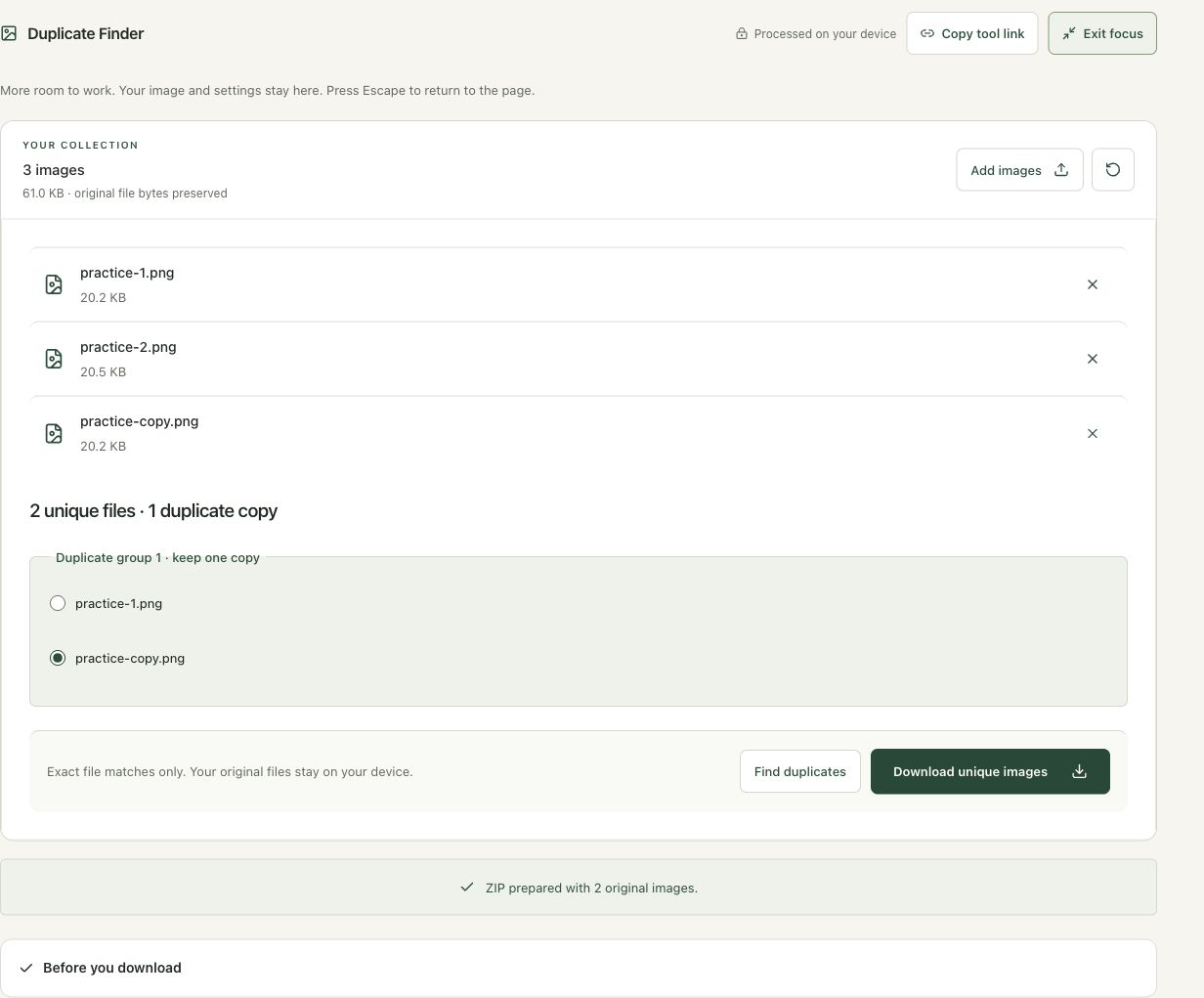
The three-file practice collection contained two unique byte sequences and one exact duplicate. Choosing practice-copy.png as the retained member produced a ZIP containing two original images.
The screenshots were captured from our working tools on October 6, 2026. Focus workspace is used to give the controls and preview more room. Captures show either the full workspace or the relevant panel; they are not recreated interface illustrations. Sizes and outcomes describe this sample, not a promised result for every image.
Follow the worked example, step by step
Read the settings and the result together. Keep an untouched source when a file is edited, and check the finished output before using it in another application. Each numbered step below includes a real screenshot of the corresponding workspace state. Use the full-size link when a control label is too small on your screen.
Step 1: Open the exact-duplicate workspace
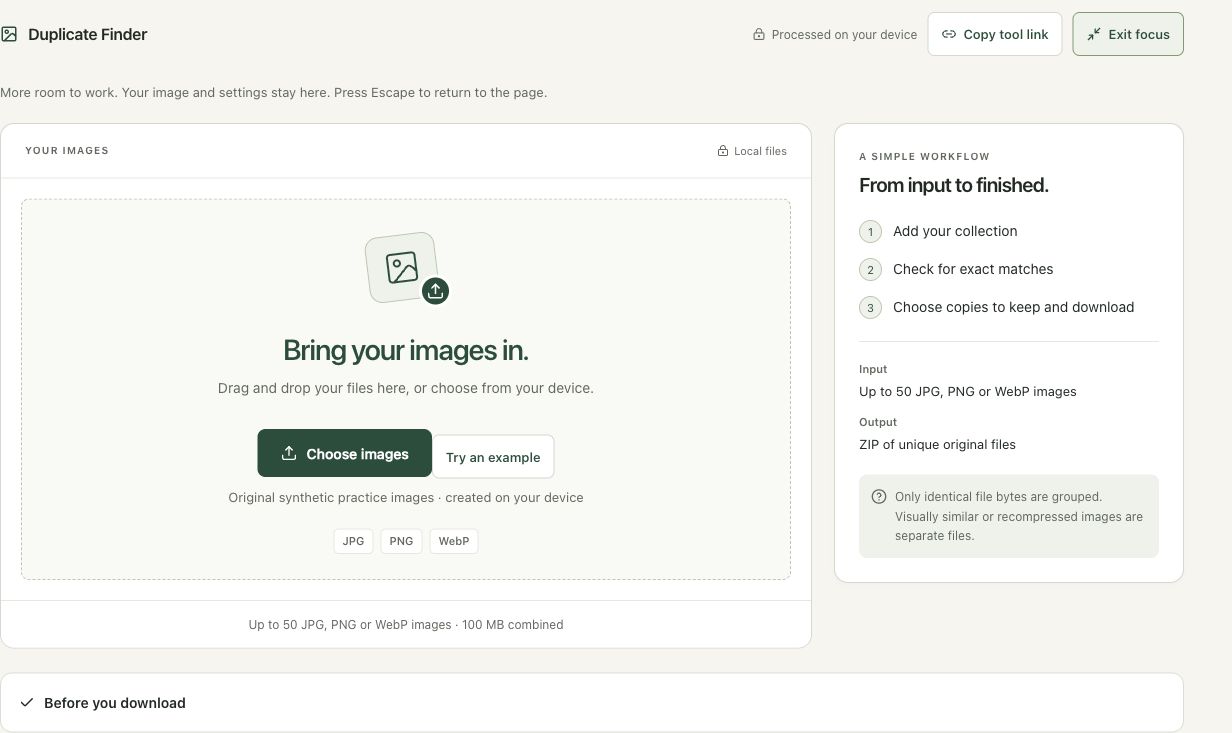
Open Duplicate Finder when you want to remove redundant copies from an exported collection. Its comparison is based on file bytes, so it answers a narrower question than whether two pictures look alike. Keep the original folder intact during review. This tool prepares a unique-file ZIP rather than deleting files from your device.
Step 2: Load a collection with a known duplicate
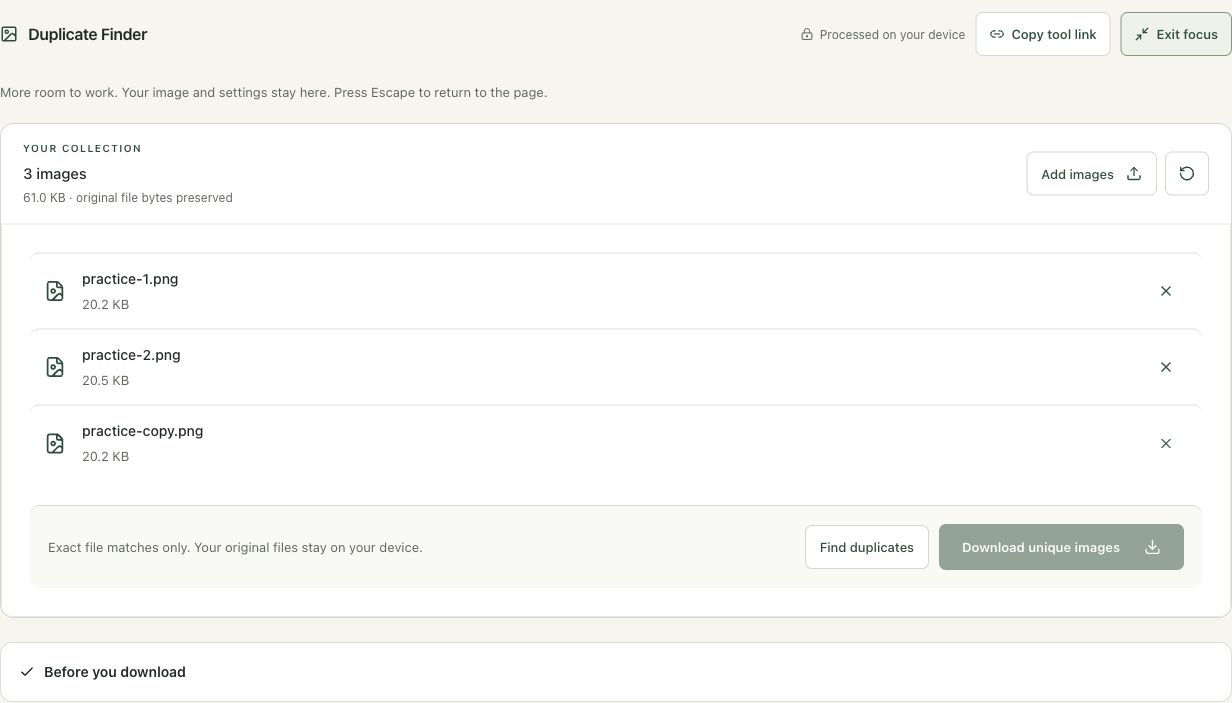
Use Try an example to load practice-1.png, practice-2.png and practice-copy.png. The third file is a byte-for-byte copy of the first. Read the list and combined size before scanning. This controlled example lets you verify the intended behavior without risking a real photo collection or assuming that similarly named files must contain the same image.
Step 3: Find duplicates and inspect each keeper group
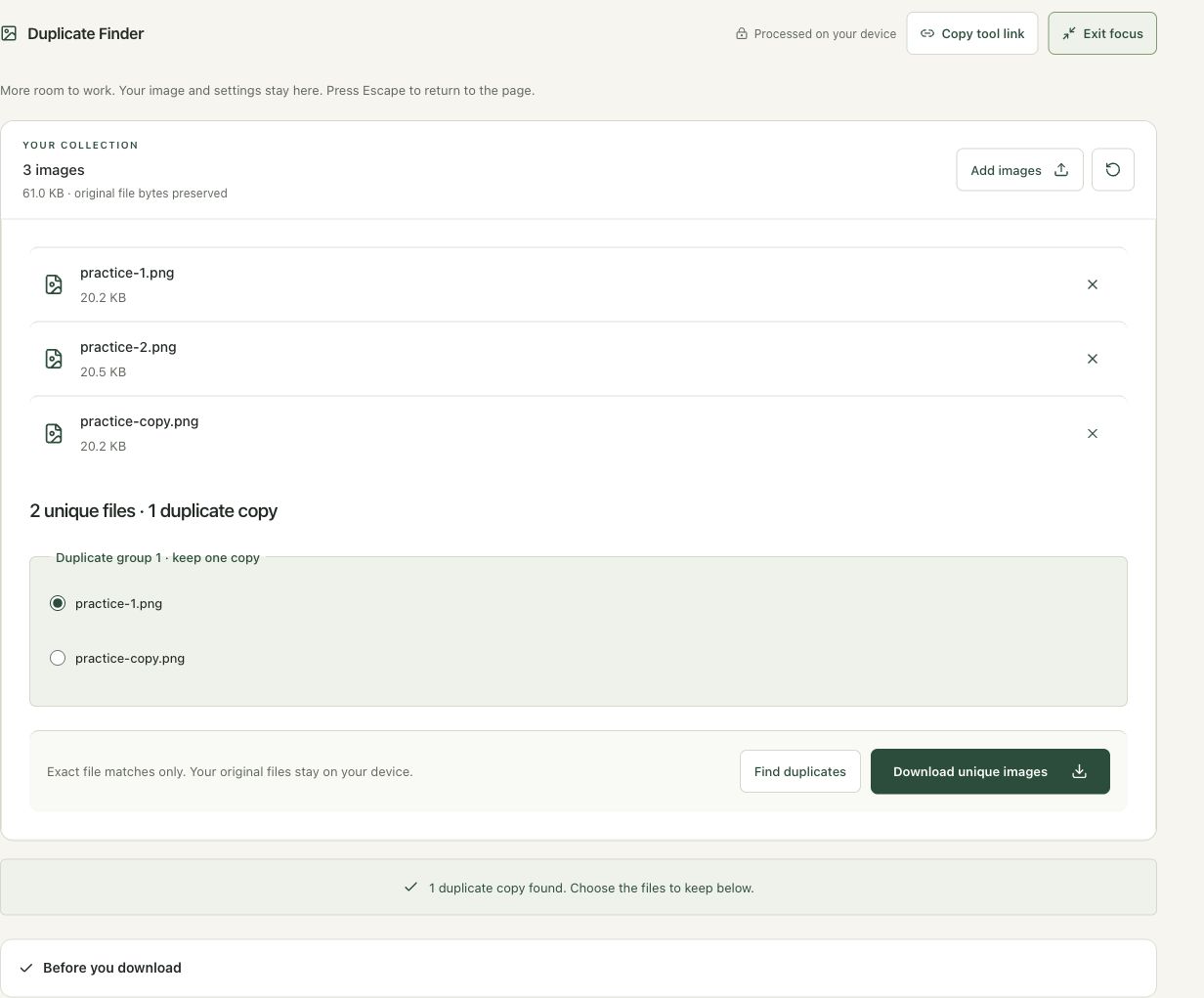
Choose Find duplicates. The completed result reports two unique files and one duplicate copy. A radio group lets you choose which filename to retain from the matching pair. Review every group in a larger collection: the preferred filename may carry useful context even though the file bytes are identical. A count alone does not choose the best naming convention.
Step 4: Choose the preferred filename and download unique images
Select practice-copy.png as the keeper, then choose Download unique images. The status confirms a ZIP with two original images. Extract it separately and verify the retained filenames. No source file is deleted. If you need to deduplicate an existing folder afterward, make that separate decision only after checking the archive and preserving a recoverable copy.
Check the result before using it
Check the selected keeper in every duplicate group and open the archive. This is exact file matching, not visual similarity, face matching or automatic deletion. A re-encoded or metadata-modified copy can look identical while having different bytes.
If the result is not what you expected
Do not expect differently cropped or recompressed photos to be grouped as duplicates. Use Image Compare when corresponding pixels need comparison. The export preserves originals and does not delete files from a folder.
Background and practical details
Decide what duplicate means
An exact copy has the same file bytes even if its name is different. A visually similar photograph can have different bytes because it was captured a moment later, resized, recompressed or saved with different metadata. A filename alone says little: two files called photo.jpg in different folders might contain different photographs.
Smart Image Tools’s Duplicate Finder groups files using SHA-256 fingerprints of their full contents. Its purpose is finding exact copies, not choosing the sharpest shot from a burst or detecting every version of the same scene. Keep that scope in mind when the result says no exact duplicates were found.
Choose a manageable collection
Select up to 50 JPG, PNG or WebP images, no larger than 50 MB each and 100 MB combined. The workspace reads the files you choose. It does not search your whole disk, scan nested folders automatically or delete files from their original locations. Start with a small, relevant collection rather than assuming a single run examines your entire photo library.
Consider how the files will be used afterward. A copy in an invoice folder and a matching copy in a product folder might both serve a purpose in your existing organization. Finding matching content is evidence for review, not a command to remove every extra reference in another workflow.
The initial keeper is the first listed member of each group. Change it when another filename is more useful. A selected keeper contributes its original file bytes to the new ZIP. Files with no matching fingerprint are included individually. If you add or remove files, run the duplicate check again before exporting.
Interpret the counts
A group containing three matching files has one unique file and two duplicate copies. If the collection also includes one different file, four inputs produce two unique outputs when one keeper is selected from the matching group. This is a counting example, not a claim about a particular folder or a guaranteed amount of disk space recovered.
The ZIP is a separate download. Creating it does not reclaim storage occupied by the original files. Review the extracted results and your own backup needs before making changes in a file manager. The tool itself has no delete action and does not silently remove a source copy.
Why similar pictures stay separate
Changing EXIF metadata can change file bytes while leaving the displayed photograph similar. A new JPG encoding can also change bytes and pixels. Neither is an exact copy for this workflow. Use Image Compare for a same-size pixel comparison when you need to investigate visible differences; it has a different purpose and also does not judge which photograph is best.
The MDN digest reference explains how a cryptographic fingerprint is derived from input data. A SHA-256 fingerprint is not a visual similarity score, a filename comparison or an image-quality measurement.
Check names and metadata in the export
Different kept images can share a filename. The ZIP workflow assigns safe names and numeric suffixes where needed, so inspect the final names after extraction. For a deliberate sequence, use Batch Rename on the chosen collection.
Deduplication preserves the original encoded files and their embedded metadata. It does not remove location information or visible private details. Read our metadata-sharing guide when the output will be shared. Keep an untouched collection until the selected images, count and names have been verified in the destination.
Keep your original files and check the actual download. If an instruction no longer matches the workspace, send us the page URL and a description. Our editorial policy explains how we document examples and limitations.
Example sources and screenshot notes
This example uses original synthetic practice graphics created by Smart Image Tools. They are controlled fixtures, not photographic performance benchmarks.
The controls shown are from the version tested for this guide. A later interface update or a different source can change a result. Compare the displayed format, dimensions and status with the instructions, and report a mismatch with the article URL and the setting involved. Our editorial policy explains how examples and corrections are reviewed.
Find the right tool for your image.
Explore the free workspaces, read their methods and inspect your result before sharing.
Explore image tools