AVIF can be a useful modern format for a website image, but a smaller file is not guaranteed and a quality setting is not a percentage of retained detail. This guide shows how to create a real AVIF and verify the result before choosing it.
What this workflow solves
AVIF can be a useful modern format for a website image, but a smaller file is not guaranteed and a quality setting is not a percentage of retained detail. This guide shows how to create a real AVIF and verify the result before choosing it. The following example uses the on-device synthetic practice image. Numerical dimensions describe the specified geometry, not a universal quality or compression result.
1. Open a supported still image
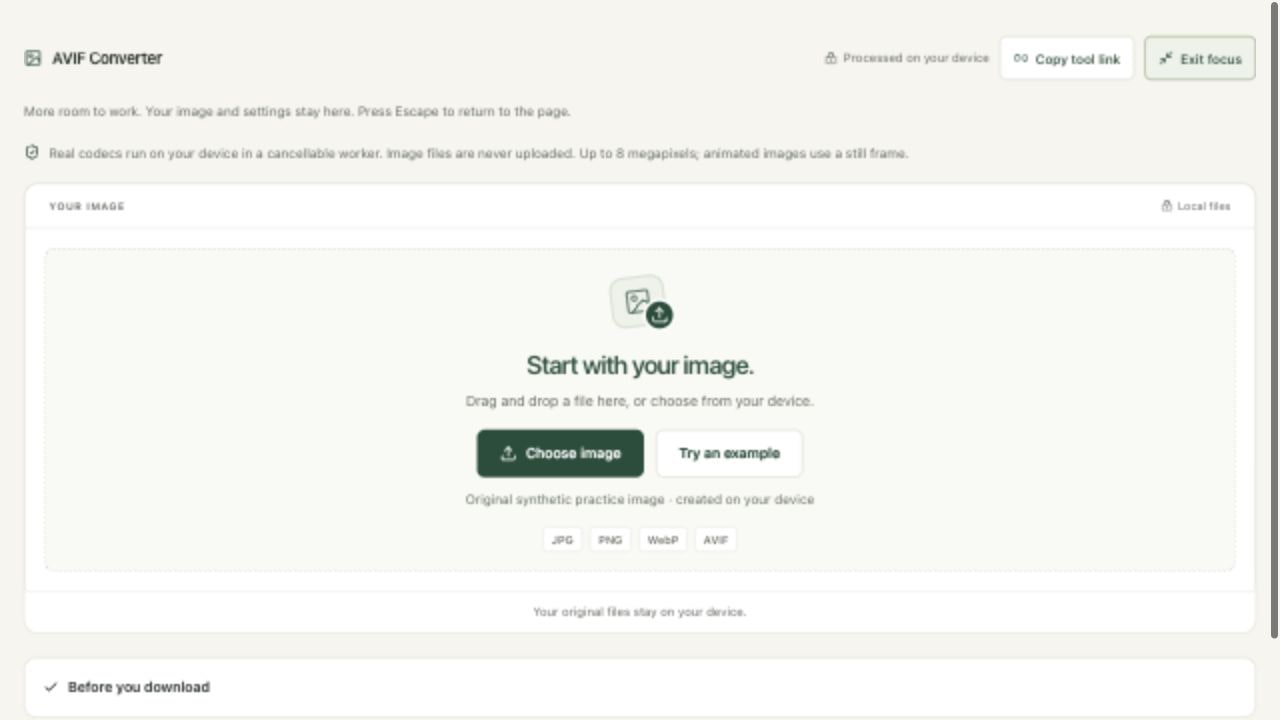
Open AVIF Converter and choose JPG, PNG, WebP or AVIF. Try an example generates a synthetic 640 × 480 PNG on this device, containing shapes and text. Keep your source untouched. JPG, PNG and WebP inputs support up to 50 MB; AVIF inputs support up to 20 MB. The working image must fit within eight megapixels and 8192 pixels per side. A larger source should be resized deliberately first, with the desired output dimensions in mind.
The tool inspects input signatures rather than trusting only a file extension. AVIF is decoded through its local WebAssembly codec so the preview can be shown as a compatible PNG. All processing remains on this device. The first AVIF operation downloads the codec from this site, which is software rather than an upload of your image. Animated inputs are treated as still images; this converter does not produce an animated AVIF or preserve an editing document with layers.
2. Choose the format and quality tradeoff
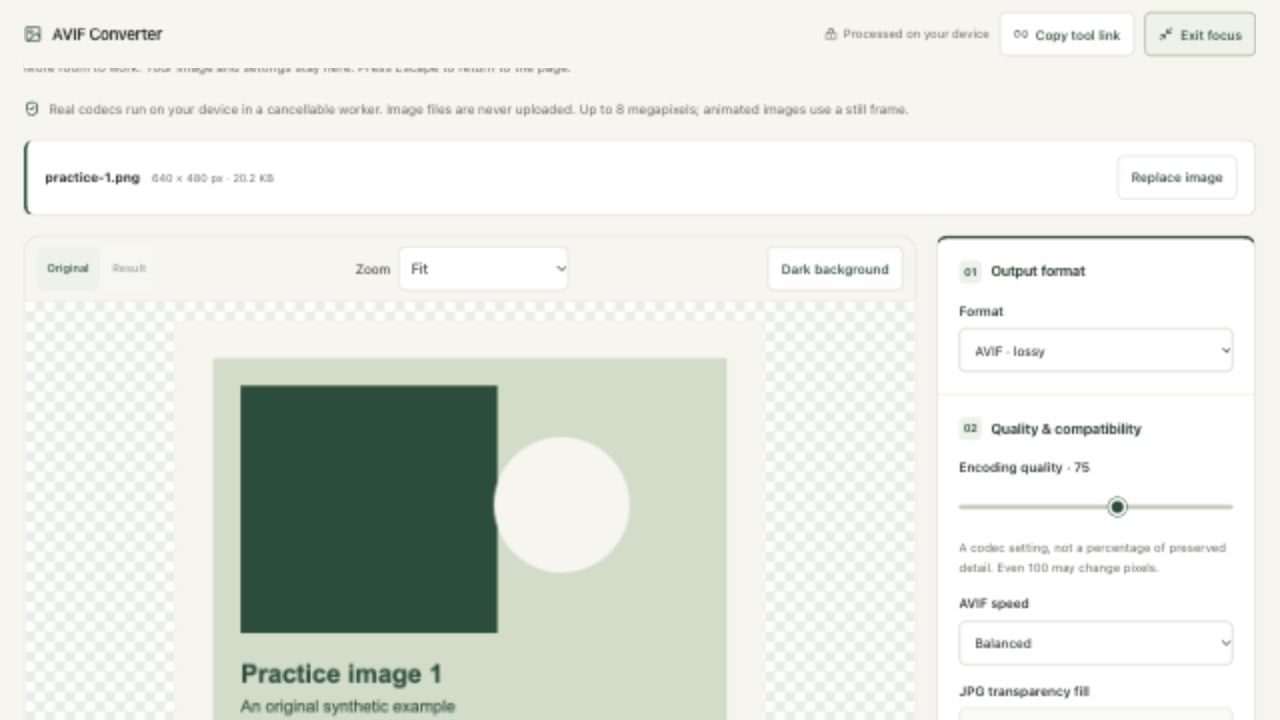
Choose AVIF in Format to encode a genuine AVIF file. The tool uses a real codec rather than changing a PNG filename to .avif. Encoding quality begins at 75. It is an encoder setting, not a measurement that the image retains 75% of its detail. Even quality 100 may change pixels in this mode. The implementation uses 4:4:4 chroma sampling and full-quality alpha, but that does not make the color encoding lossless.
PNG preserves the decoded working pixels without adding a lossy encoding step. It cannot undo loss already present in a source JPEG or AVIF. WebP and JPG outputs are lossy. JPG fills transparent pixels with the selected JPG transparency fill color. If exact source bytes or original metadata are required, keep the original file rather than using a decoded-pixel conversion. For unchanged supported PNG, JPG or WebP files, Lossless Compress is a better first choice when the goal is smaller bytes with the same image data.
3. Choose speed, encode and inspect detail
AVIF speed offers Balanced, Fast and Smaller output · slower. A slower setting asks the encoder to spend more work searching for an efficient representation. It does not guarantee a particular reduction. Choose Create image and keep the tab open while the cancellable worker runs. The operation has a 90-second limit. If a large input reaches that limit, choose faster speed or use a smaller source rather than repeatedly waiting for an identical workload.
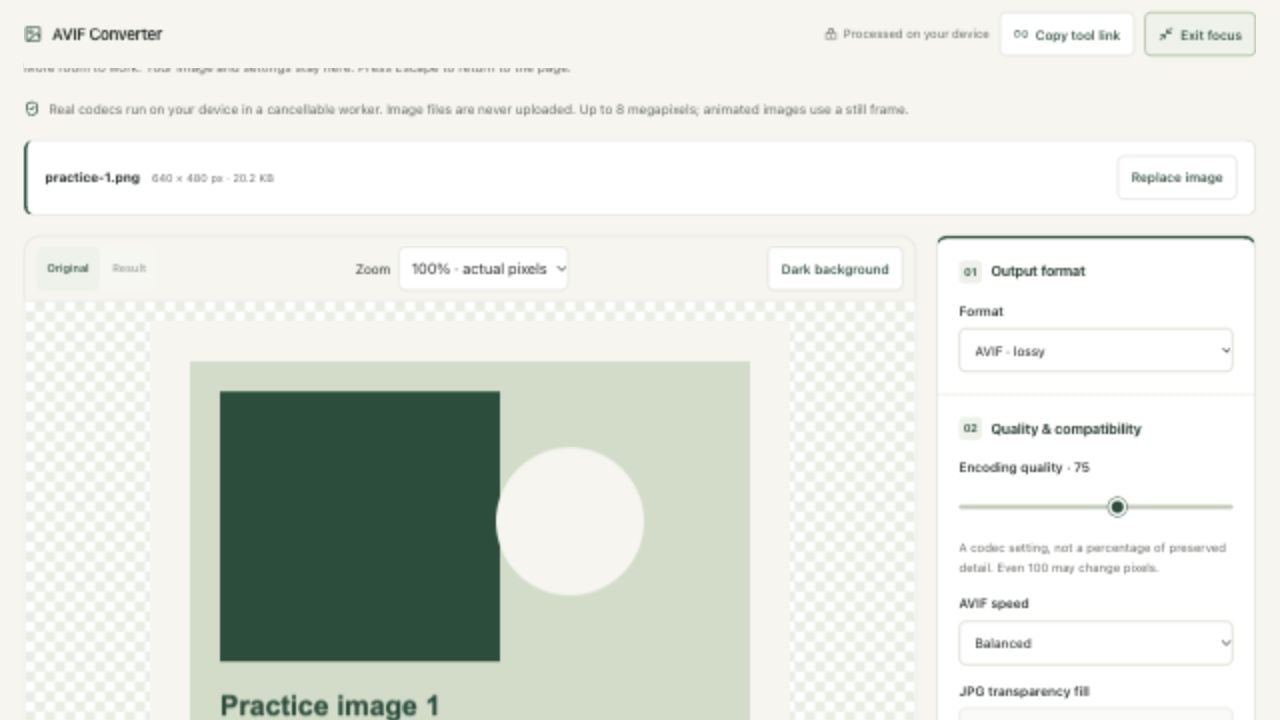
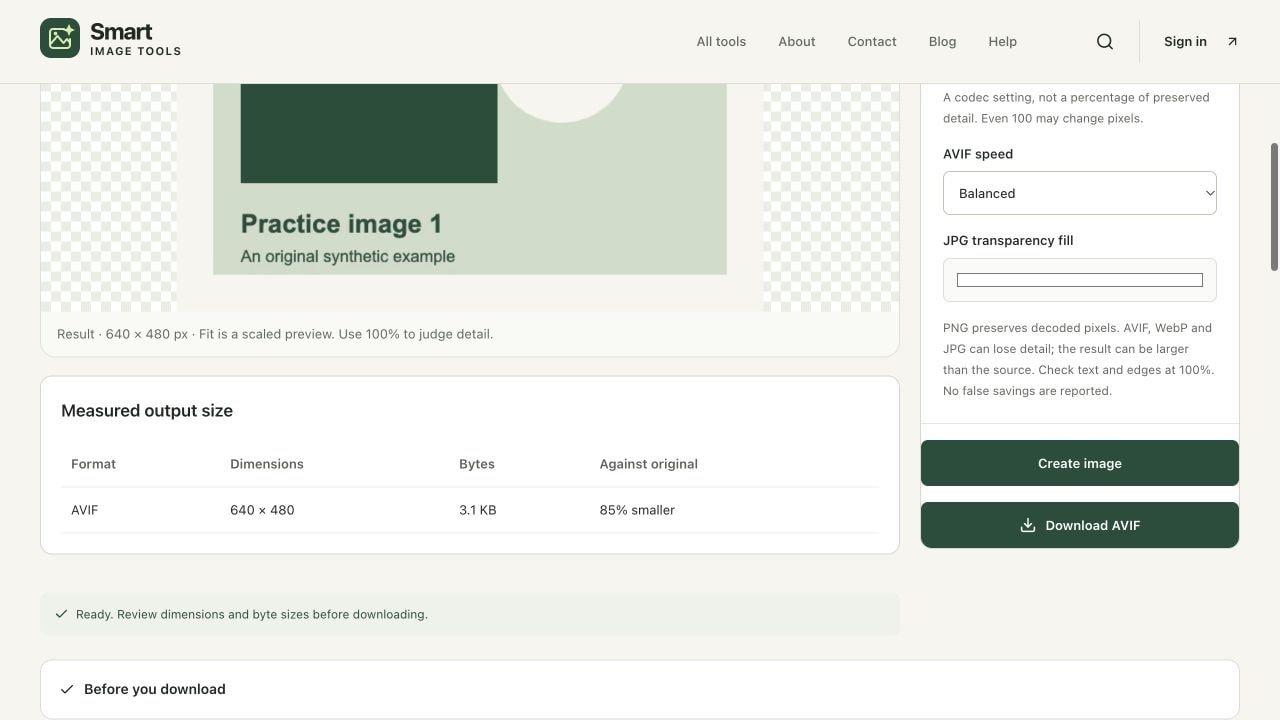
When the result is ready, the tool decodes the AVIF again for the quality preview. Switch between Original and Result and choose 100% · actual pixels. Inspect fine text, diagonals, texture, color boundaries and partially transparent edges. Fit is a scaled view and can hide artifacts. An apparent change in a fitted view can also reflect browser resampling, so judge the actual-pixel view and the intended destination size together. This is a visual check, not a universal proof that every viewer will find the images equivalent.
4. Read actual bytes and keep the useful output
Measured output size shows the format, dimensions, bytes and comparison with the original. The dimensions remain the source dimensions for this converter. A 10 KB source producing a 12 KB output is 20% larger; it is not a saving. A tiny graphic, screenshot, already compressed photo or metadata-heavy source can behave differently. The tool reports the observed direction instead of renaming a size increase as compression. Source preservation means you can choose the original whenever the result is unsuitable.
Download AVIF requests the encoded file. Test it in the website or application that will consume it, because format support belongs to that destination as well as your preview browser. To prepare modern sources with a JPG fallback and several widths, continue in Responsive Image Package. To use the exported AVIF in a tool limited to JPG, PNG and WebP, convert it to PNG first in AVIF Converter. A local handoff keeps the image on this device, expires after 30 minutes and removes expired records on subsequent use.
Three different meanings of preserving quality
Preserving original bytes means the entire file is unchanged. Preserving decoded pixels means the rendered pixel values can be encoded without additional loss, while file structure or metadata may differ. A lossy conversion means the encoder may change pixel values in pursuit of a smaller representation. These are distinct outcomes. An export can look acceptable without being pixel-identical, and a pixel-preserving PNG can be much larger than the original photo.
Choose the outcome that your task requires. Logos and screenshots with small text deserve close inspection. Product images may need careful color checks. A destination that accepts only JPG cannot use AVIF directly. A website can use modern formats with a fallback, but its actual loading behavior and mobile performance need measurement after integration. Controlled synthetic examples establish that the codec runs and the result has the expected dimensions; they do not establish an average compression percentage for all photographs.
Verify your result
- Confirm the source and output dimensions match; inspect transparent edges and fine text at 100%.
- Read the measured byte comparison. Keep a larger file only when its format or quality tradeoff serves your destination.
- Open the downloaded AVIF in the intended consuming application, or convert it back to PNG for a compatible pixel preview.
When the result needs work
- Encoding reaches its limit: select Fast or deliberately resize a copy before converting.
- Result looks soft: raise quality and inspect again; switch to PNG if decoded-pixel preservation is essential.
- The output is larger: the source may already be efficient. Retain it, or compare other formats rather than expecting guaranteed savings.
- Destination rejects AVIF: provide an accepted format or a website fallback. A working preview does not override upload requirements.
References and next steps
Open avif converter to reproduce the workflow. Technical references reviewed October 9, 2026:
For another task, use Lossless Compress, Image Info or Image Compare. Files remain on your device; optional usage analytics never include image contents or filenames. Read our privacy policy and editorial policy. If an instruction differs from your result, send the page URL and a description so the guide can be reviewed.
Find the right tool for your image.
Explore the free workspaces, read their methods and inspect your result before sharing.
Explore image tools